Showing posts with label CGDI Prog BMW MSV80. Show all posts

Tuesday, February 22, 2022

CGDI BMW Add Key for BMW Mini Cooper

This article show a guide on how to use CGDI BMW to add key for BMW Mini Cooper.

Procedures:

Connect the CGDI BMW Programmer to Mini Cooper via OBD port.

Then run the CGDI BMW software,and select “BMW OBD Key Match”

CGDI-BMW-Add-Key-for-BMW-Mini-Cooper-1

Click “Read Key Info”

CGDI-BMW-Add-Key-for-BMW-Mini-Cooper-2

Then the program will read the key data,you need wait for completing.

It will pop-up a massage:

Pls pup up the key from the ignition,follow the operation and click “OK”

CGDI-BMW-Add-Key-for-BMW-Mini-Cooper-3

Then save the key data on your laptop that read out by CGDI BMW

CGDI-BMW-Add-Key-for-BMW-Mini-Cooper-4

Click “Generate dealer key”

CGDI-BMW-Add-Key-for-BMW-Mini-Cooper-5

CAS3 encryption version matching key need to enter the engine ISN.

Please choose to obtain ISN code.

Here we check the option:”Put the key into the CGDI programmer coil”

CGDI-BMW-Add-Key-for-BMW-Mini-Cooper-6

Put the working key into the CGDI BMW slot,and click “Next ” to continue

CGDI-BMW-Add-Key-for-BMW-Mini-Cooper-7
It prompt you working key reading successfully,and you need to put the blank key into the CGDI BMW programmer coil

CGDI-BMW-Add-Key-for-BMW-Mini-Cooper-8

And if it prompt you some massage,check it and click OK to continue.

Just wait for new key programming completing.

CGDI-BMW-Add-Key-for-BMW-Mini-Cooper-9

Done!

Tuesday, February 15, 2022

How to Add New BDC Key to BMW MINI F56 by CGDI BMW

Got a Mini Cooper F56 with BDC module, add a new key from CGDI Prog BMW.

Let’s test the car and the ignition switch first.

The car engine runs very well. Sounds good!

OK, turn off the switch.

How-to-Add-New-BDC-Key-to-BMW-MINI-F56-by-CGDI-BMW-1

Next we wanted to disassemble the BDC module, remove the BDC module and fit them on the platform. Then use the CGDI BMW key programmer

The BDC module is located on the right foot of the passenger seat. There isn’t a single screw in there.

It’s easy to remove. After removing the top cover, remove all connectors and the BDC module can be removed.

How-to-Add-New-BDC-Key-to-BMW-MINI-F56-by-CGDI-BMW-2

Then go back to the platform and take the next step.

The cover of the BDC module has been removed. There is the 8-pin 95256 chip on it.

We’re going to read and write data to this chip and then preprocess BDC.

The chip has glue on it. We have to remove the glue before reading the data.

Drop the glue remover on the chip, and use the cotton swab to clean the chip.

How-to-Add-New-BDC-Key-to-BMW-MINI-F56-by-CGDI-BMW-3

Connect the 95256 chip to the equipment first

Connect the FEM/BDC test platform , CGDI Prog BMW key programmer, BDC module

The power, voltage and all devices are working.

How-to-Add-New-BDC-Key-to-BMW-MINI-F56-by-CGDI-BMW-4

Now we open CGDI BMW software to operate.

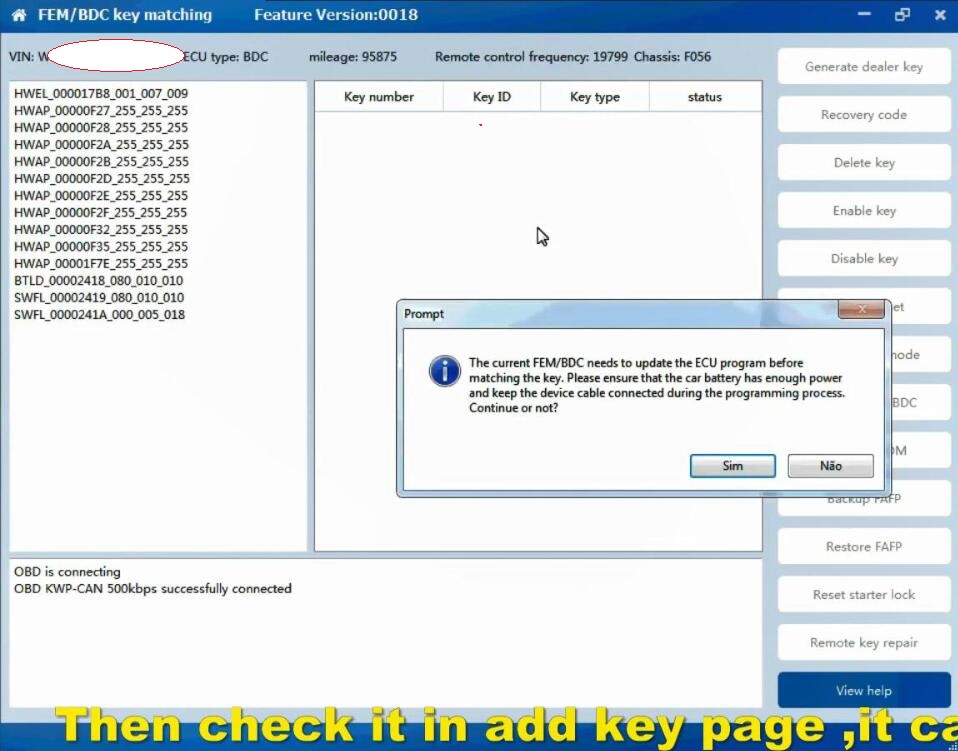
Select FEM/BDC key match

Follow the prompt to update the ECU program before adjusting the key and make sure the car battery has enough power and keep the device cable connected during the programming process. Click Yes

Backup encoding succeeded

Then tick the second option ‘Use EEPROM adapter to read FEM/BDC 8-PIN chip data: Please remove the FEM/BDC from the car (must cut off power), and properly connect the adapter’s chip clip to the 95128/95256 chip of the FEM/BDC.

Read the data successfully, save the data to our desktop and create a folder. The device prompts to remove the clip from the chip.

How-to-Add-New-BDC-Key-to-BMW-MINI-F56-by-CGDI-BMW-5
How-to-Add-New-BDC-Key-to-BMW-MINI-F56-by-CGDI-BMW-6

Install the FEM/BDC into the car (The chip holder must be removed from the chip)

It shows the key info. Now that proves this module processing successfully.

How-to-Add-New-BDC-Key-to-BMW-MINI-F56-by-CGDI-BMW-7

Move the key little, and put the key again

How-to-Add-New-BDC-Key-to-BMW-MINI-F56-by-CGDI-BMW-8

It prompts the key info on the CGDI BMW software. Now it has the password, ISN, key synchronization code, and DME code.

How-to-Add-New-BDC-Key-to-BMW-MINI-F56-by-CGDI-BMW-9

Save the data

Follow the prompt to close the new key to the key induction area under the steering wheel.

Program key successfully, and the key position 5 has been added succeeded.

How-to-Add-New-BDC-Key-to-BMW-MINI-F56-by-CGDI-BMW-10

Finally, put the BDC module back to the car and test if it’s good.

It is easy to disassemble and install. You don’t have to worry about the plug. If the plug is wrong, it cannot be plugged in. It’s not difficult to install.

How-to-Add-New-BDC-Key-to-BMW-MINI-F56-by-CGDI-BMW-11

Try the original key and the reprogrammed key, both work fine. In the end we need to use CGDI BMW to diagnose. Go to the DTC and check if everything is OK. If DTC is present, clear it.

Friday, June 4, 2021

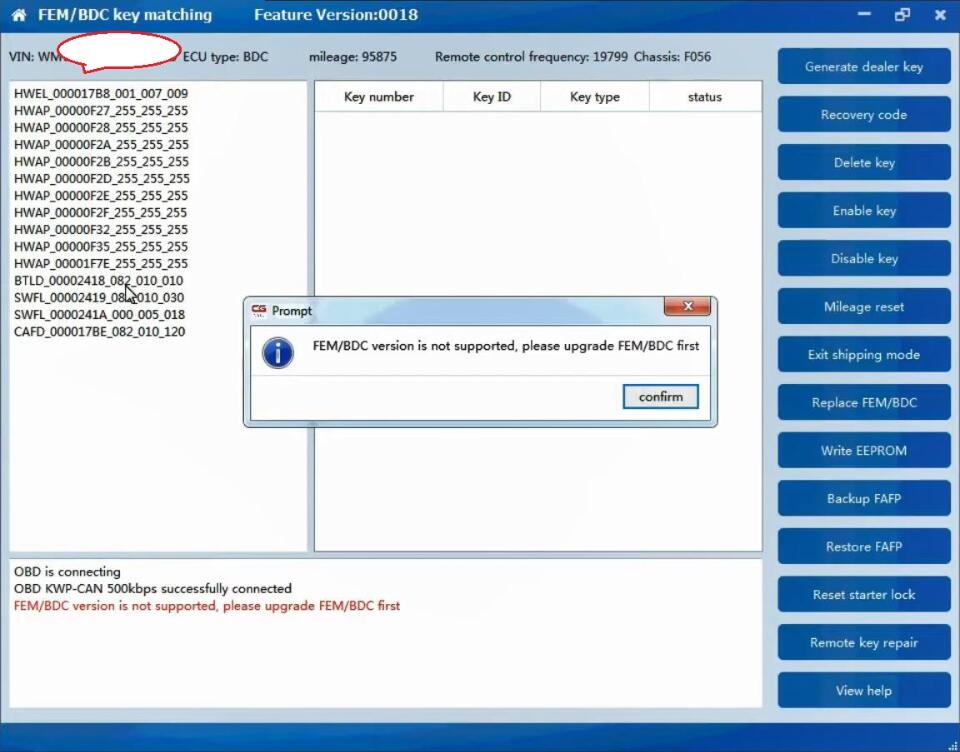
How to Solve CGDI BMW FEM BDC Version is Not Supported

Solution to CGDI BMW “FEM BDC Version is not supported, please upgrade FEM /BDC first“. if you have the same problem, please follow this article to fix it.


How-to-Solve-CGDI-BMW-“FEM-BDC-Version-is-not-Supported”-1    

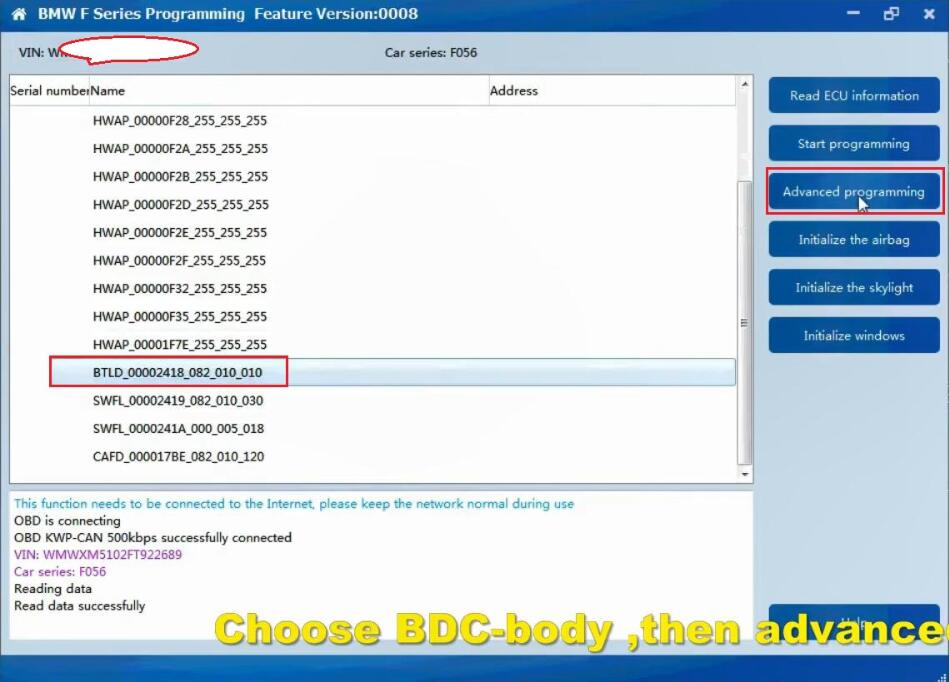
Please upgrade FEM /BDC first”, please Check the BTLD version, If it is 82 or 83 , you need to go to program page .advanced mode , program it (in this article). If it is other version , you need to go to program page, program it with default version (will make a manual ).

Choose BDC_Body, then “Advanced mode”.

Follow the prompt ” The ECU is about to be programmed. Please ensure that the car battery has enough power and keep the device cable connected during the programming process. Click on “Yes” to continue.

Click on “Yes” to backup the coded data.

The progress will be displayed in the box.

How-to-Solve-CGDI-BMW-“FEM-BDC-Version-is-not-Supported”-2

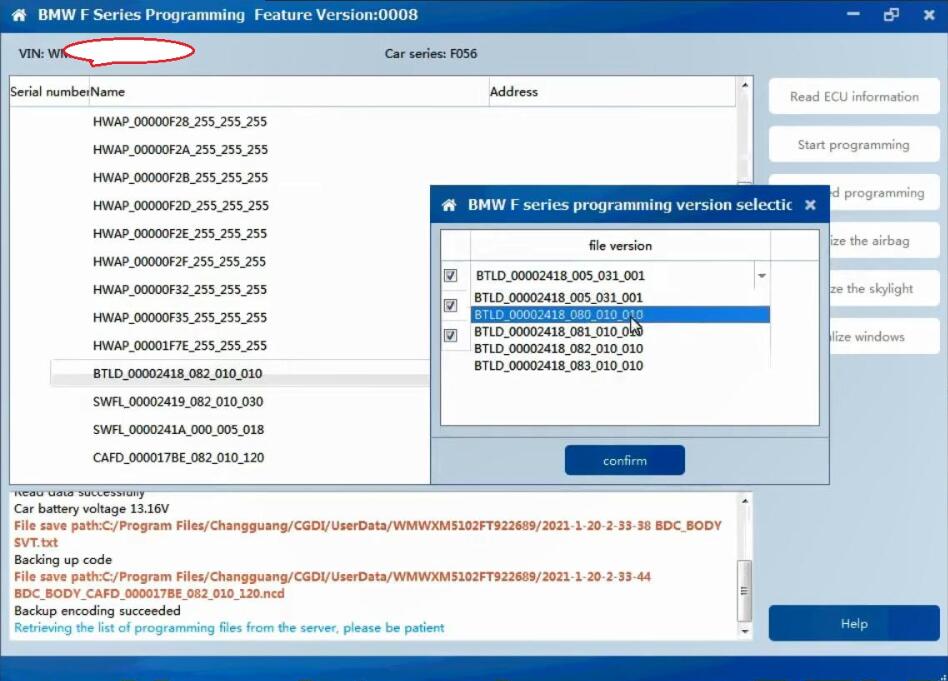
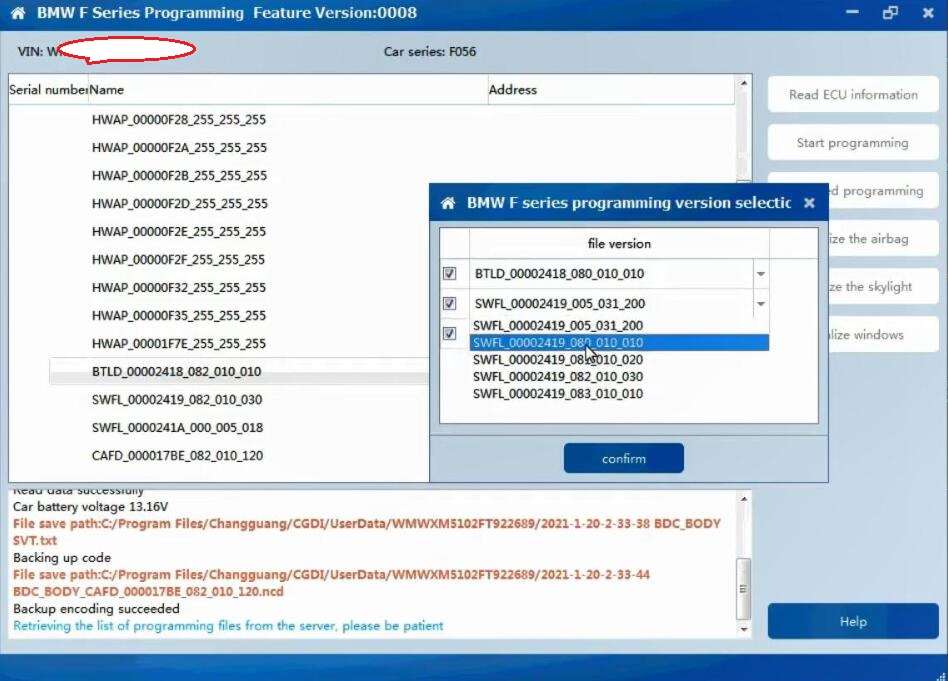
Next is BMW F series programming version selection, please choose “BTLD-80”, the next one is to choose “SWFL -80”.

Then click on “Confirm”.

How-to-Solve-CGDI-BMW-“FEM-BDC-Version-is-not-Supported”-3
How-to-Solve-CGDI-BMW-“FEM-BDC-Version-is-not-Supported”-4

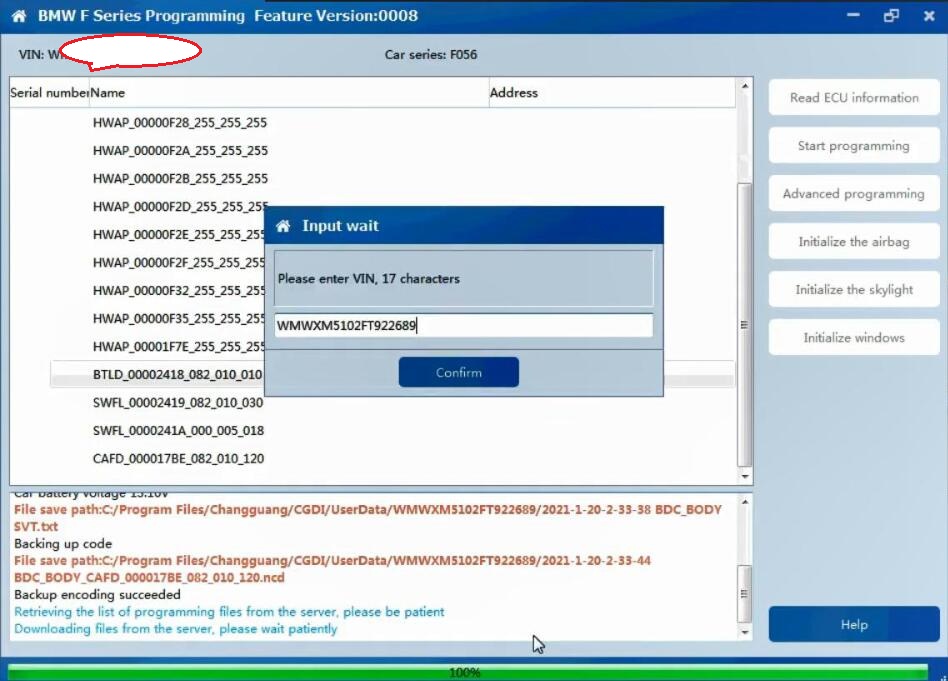
Retrieving and downloading the list of programming files from the server, please be patient, how much time to cost, it will depend on your internet speed.

When it shows 100%, you will be asked to enter VIN 17 characters.

How-to-Solve-CGDI-BMW-“FEM-BDC-Version-is-not-Supported”-5

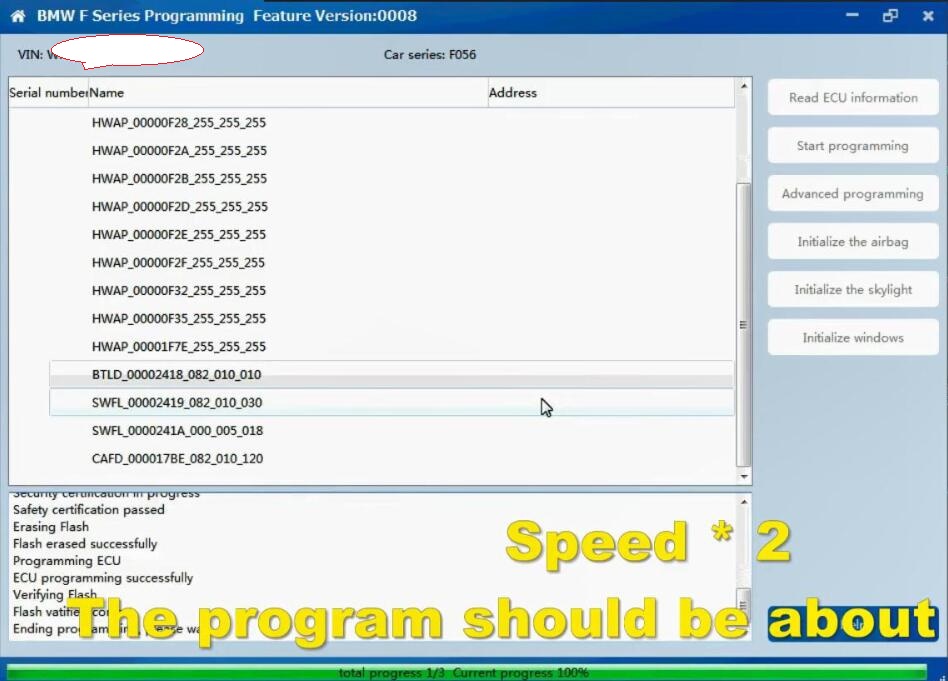
Ready to program ECU…It will take about 8 minutes.

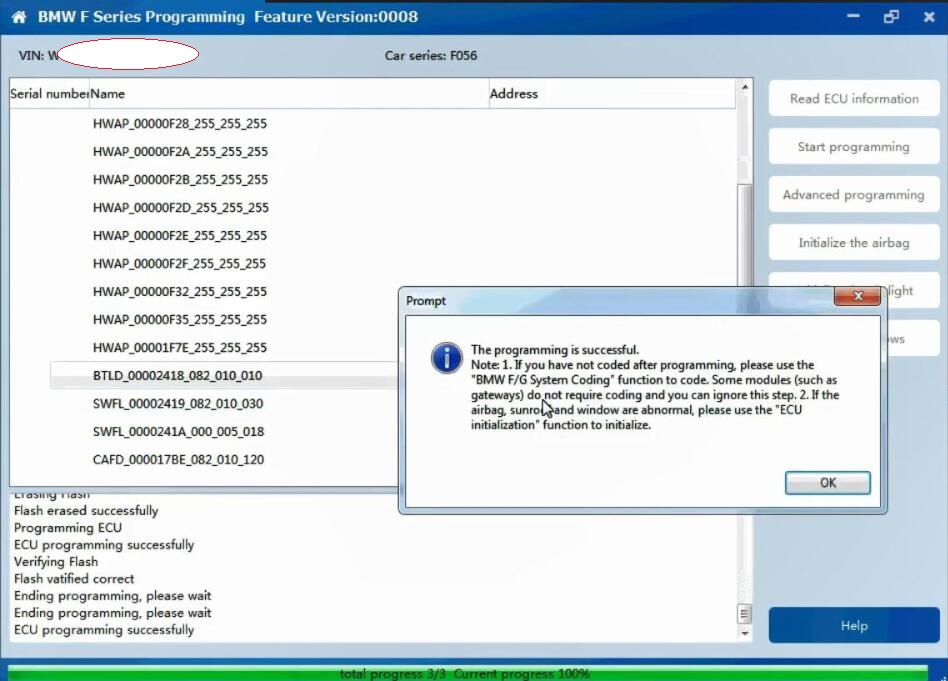
When it shows 100%, it means ECU programming successfully.

How-to-Solve-CGDI-BMW-“FEM-BDC-Version-is-not-Supported”-6

Note 1. If you have not coded after programming, please use the “BMW F/G system Coding” function to code. Some modules (such as gateways) do not require coding and you can ignore this step.

Note 2. If the airbag, sunroof and window are abnormal, please use the “ECU initialization” function to initialize.

How-to-Solve-CGDI-BMW-“FEM-BDC-Version-is-not-Supported”-7 
How-to-Solve-CGDI-BMW-“FEM-BDC-Version-is-not-Supported”-8

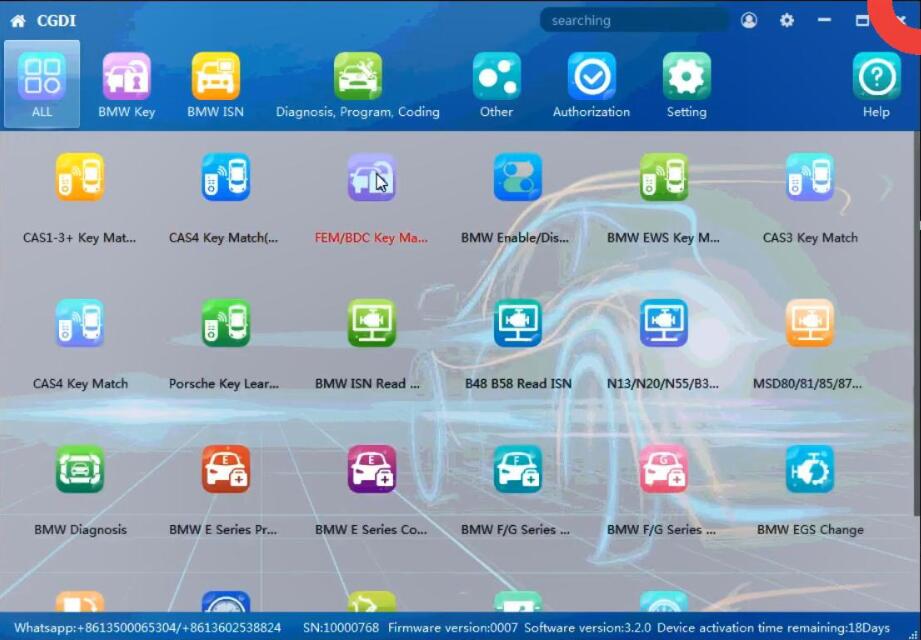
Then check it in the Add Key page, it can work now.

How-to-Solve-CGDI-BMW-“FEM-BDC-Version-is-not-Supported”-9

CGDI BMW Key Programmer tech support: www.obd2tool.com

Thursday, May 27, 2021

How to read ISN Code of BMW EDC16c35

 ISN is not a software, but rather it is the immobilizer key code that the EWS or CAS module (the immobilizer security module). Newer cars’ ISNs use a starting code that is stored in the DME (or DDE if a diesel car) and then change the code (rolling code) with each successful engine start. The EWS/CAS and DME/DDE stored ISN must match, or else the car will not start. There is no BMW software that does anything with the ISN, besides the first time DME to EWS/CAS pairing (on virgin DME or virgin EWS)


There are aftermarket (non-BMW) software that help with ISN identification and maybe even modification, but this is done after reading a module’s EEPROM or flash memory. This requires very intensive knowledge of electronics, and some expensive interfaces.

Some ECUs have the ISN in a OTP section (one time programming) of the memory (ex: MSD80 DME of the 335i), so essentially that ECU is married for life, you cannot edit anything to that ISN. There are very expensive interfaces that can edit the EWS or CAS to match the used DME, but this is besides the point.

Those interfaces include genuine AVDI, FVDI, or Autohex.

And if you are talking about a little piece of software called “BMW ISN”, this is an aftermarket program that goes together with yet another expensive interface, BMW Explorer or Autohex ii, that can edit the ISN in the EWS or CAS. Mostly useless without proper interfaces and tools.

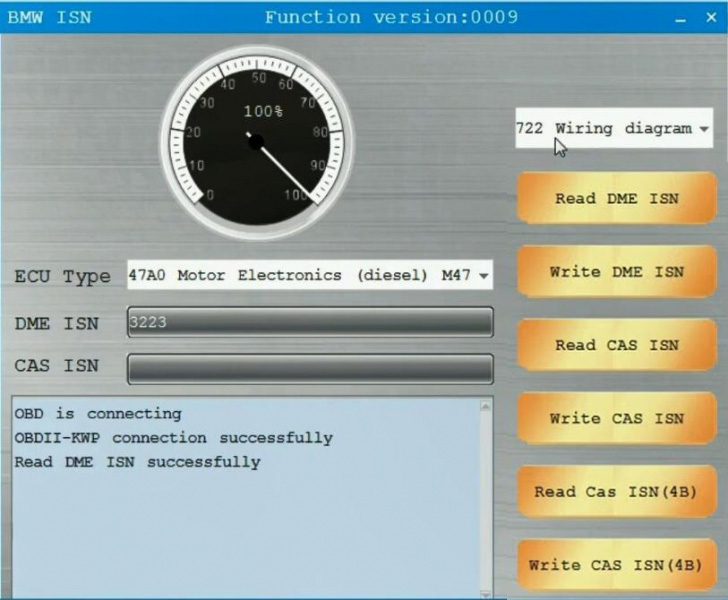
How to read ISN of EDC16c35 (for example in encrypted CAS3 + when all keys are lost)? An increasing number of locksmiths verified CGDI Yes, Autohex Yes, VVDI No.

How-to-read-ISN-Code-of-BMW-EDC16c35-1    

Autohex: Yes, but not on bench

Tried ISN extraction via ON-BENCH, didn’t work

Finally succeeded with the following steps:
-> copy content of 96540 eeprom of original-ECU to donor-ecu
-> coded the donor-ecu to the car
-> updated the software of the donor-ecu
-> EWS alignment

CGDI BMW programmer: Yes

Oh I surprised, I can read ISN of EDC16c35 right with CGDI and AVDI but not change.

Path:

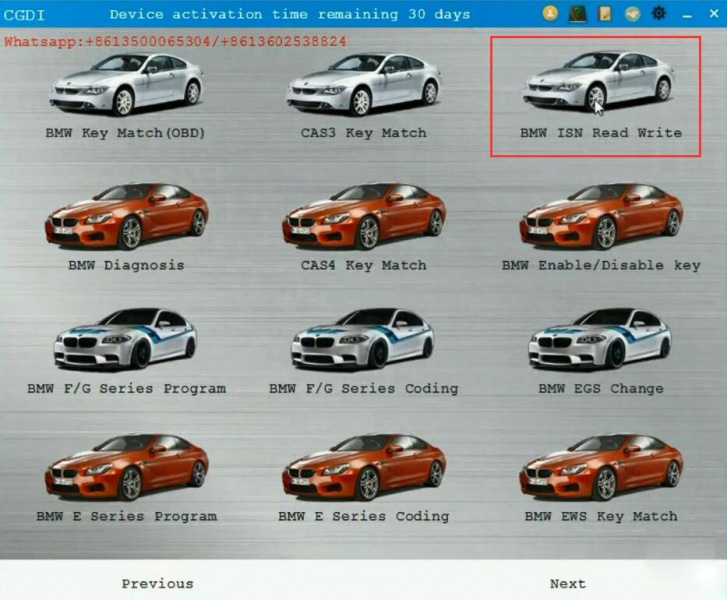
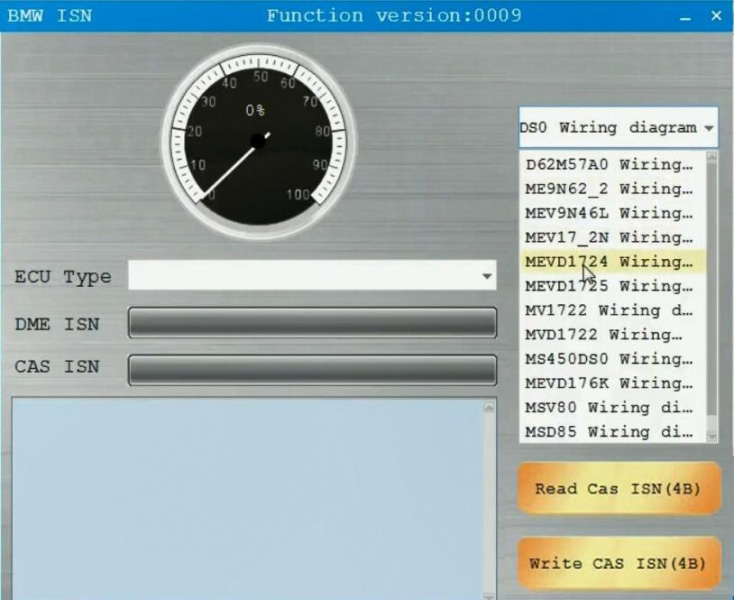
Open CGDI software -> select “BMW ISN Read Write” -> select ECU type -> click on “Read DME ISN” and then after it succeed, click on “Write DME ISN”.

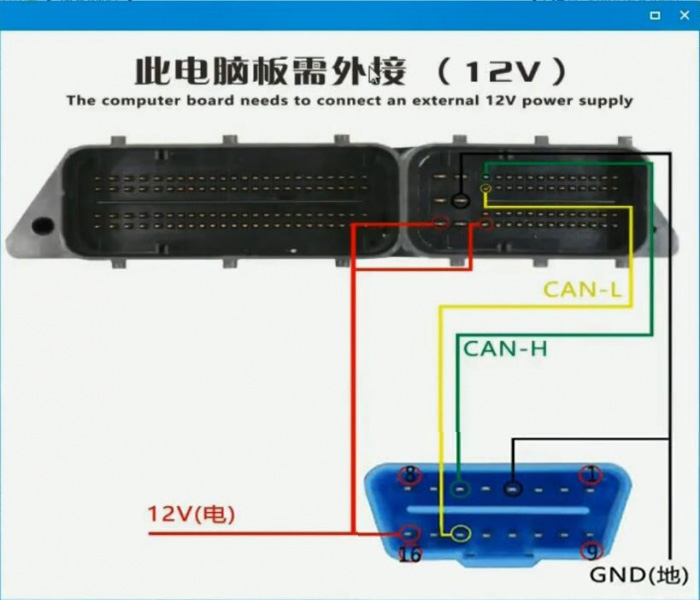
It’s nice feature is it come with wiring diagram.

Good to know:

CGDI BMW programmer wins in ISN reading /writing for a wide range of DME. And it is available with individual BMW ISN reading authorization.

How-to-read-ISN-Code-of-BMW-EDC16c35-2

How-to-read-ISN-Code-of-BMW-EDC16c35-3

How-to-read-ISN-Code-of-BMW-EDC16c35-4

How-to-read-ISN-Code-of-BMW-EDC16c35-5

Xhorse VVD2: Failed

I bought Xhorse VVDI2 new, can‘t read ISN of EDC16c35 . Not on bench not in car.

I think VVDI II cannot read 2 bytes ISN.

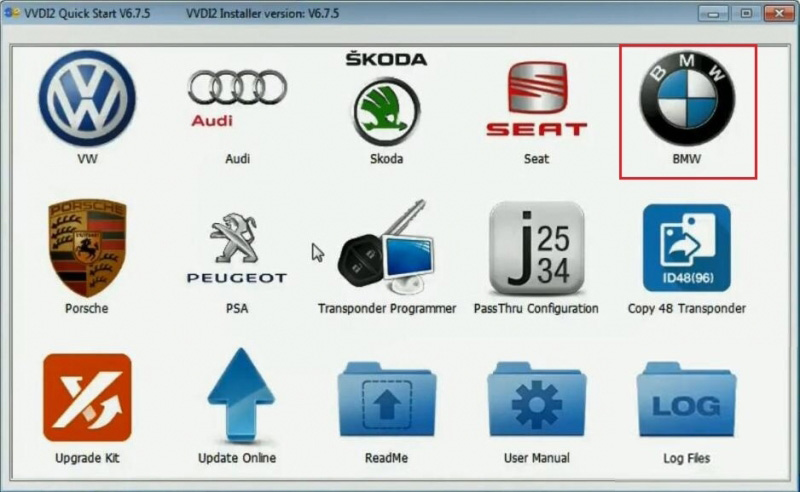
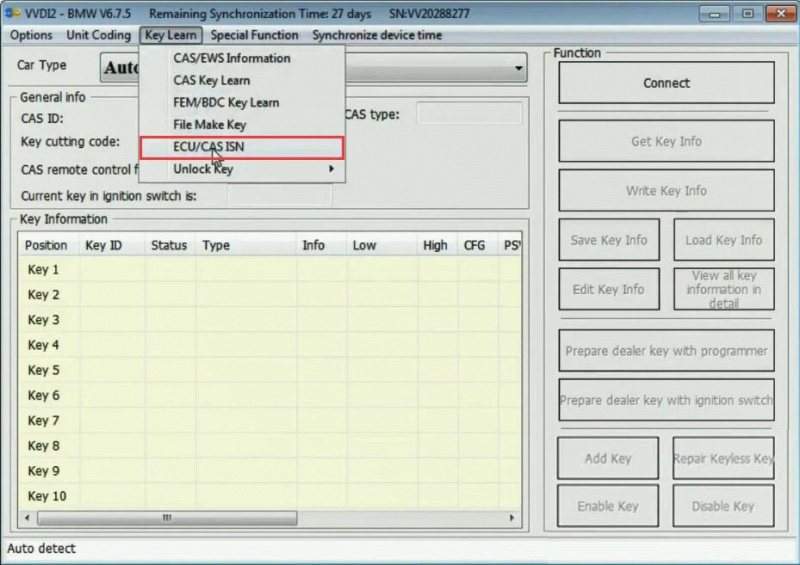
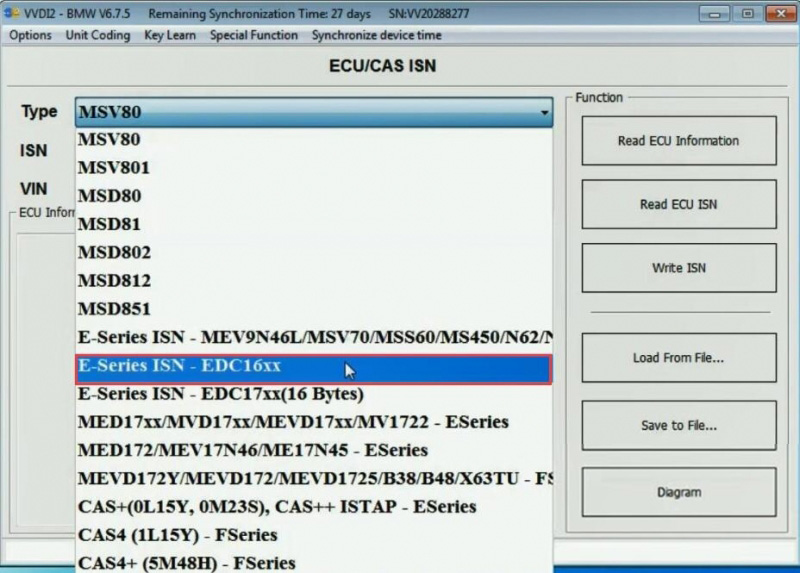
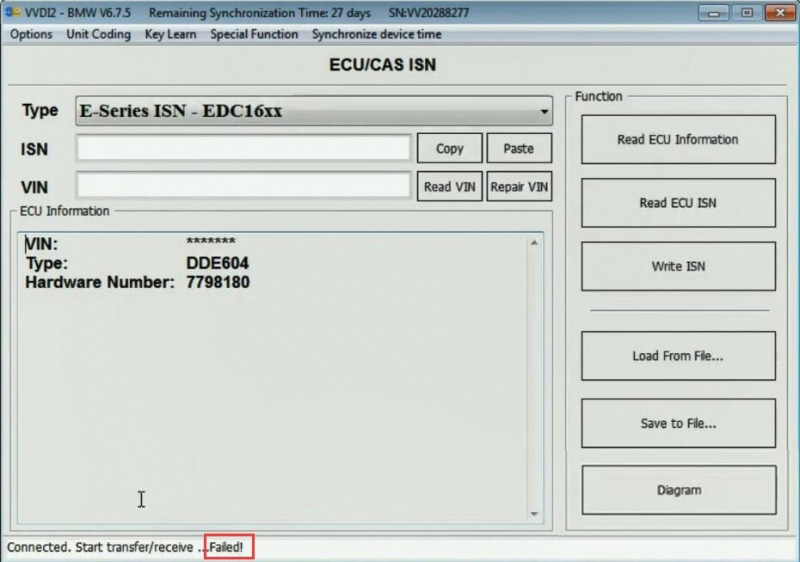
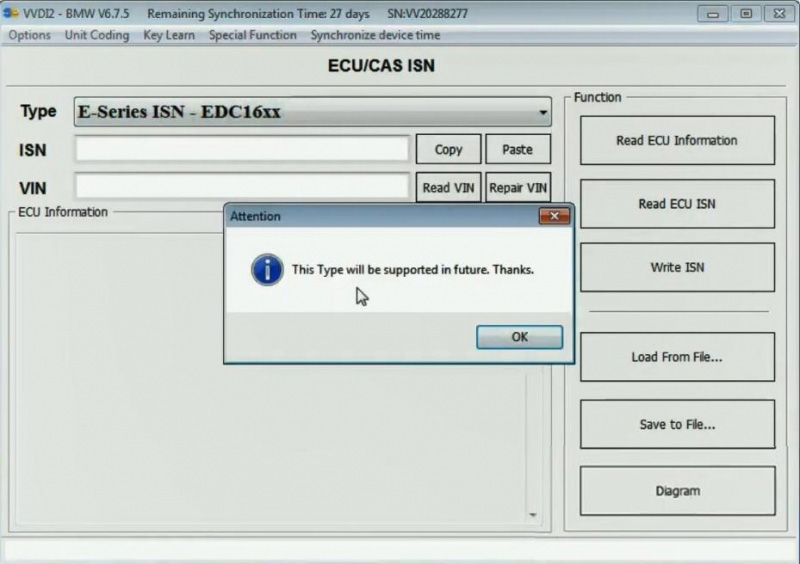
Path: open VVDI2 Quick Start -> BMW -> Key Learn -> ECU/CAS ISN -> Type E-Series ISN -EDC16xx.

No matter what you select “Diagram”, “Read ECU information”, “Read ECU ISN”, it will pop up not supported yet or failed.   But software prompts it will add this type in the feature.

How-to-read-ISN-Code-of-BMW-EDC16c35-6

How-to-read-ISN-Code-of-BMW-EDC16c35-7  

How-to-read-ISN-Code-of-BMW-EDC16c35-8

How-to-read-ISN-Code-of-BMW-EDC16c35-9

How-to-read-ISN-Code-of-BMW-EDC16c35-10

Hope it helps!

Thursday, December 7, 2017

CGDI Prog BMW Key Programmer

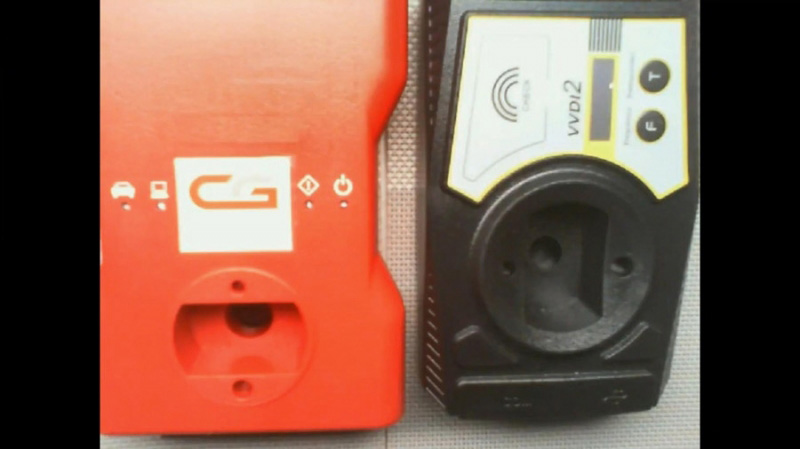
CGDI Prog BMW MSV80 is an excellent programmer designed for auto diagnostics, programming and security maintenance. Here, i will make clear how to use the CGDI Prog BMW key programmer device.
19-1
Key Programming for BMW CAS1/CAS2/CAS3
Key Matching & All key lost for CAS4 /CAS 4+
Connection: through OBD
Features:
Runs fast with safety
Programs keys for a short time
Module list:
1.BMW CAS1/CAS2/CAS3/CAS3+/key increasing matching,KEY all lost matching,CAS computer replace,CAS3+/P4X above version can directly downgrade by OBD in 5 minus 100% safety.
2.BMW CAS4/CAS4+/Support key matching,support key all lost matching.
3.BMW key inspection,can check key what status in.
4.BMW engine computer DME replacement.
CGDI Prog On Obd2tool.com Car list:
19-2
BMW key programmer for sale:
AK90 key programmer:
read all EWS key information from EWS2.1/EWS2.2/EWS3/EWS3.3/EWS4/EWS4.4 system from 1995-2009
AK300+ BMW CAS Key Maker :
only work for BMW from 2002 -2009 years with new BMW CAS,CAS2,CAS3,CAS3+.
YanHua CKM100 key programmer:
Old BMW (EWS2.EWS3.EWS4)
BMW 1/3/5/6/X (E87.E90.E91.E92.E60.E61.E63.E70.E71) series black shell
CAS 2
BMW 1/3/5/6/X (E87.E90.E91.E92.E60.E61.E63.E64.E70.E71) series black shell CAS 3/3+
BMW 7 series E65, E66, CAS
BMW Multi Tool:
work for BMW CAS 1 CAS2 CAS3 CAS3+ CAS4key programmingby OBD2
VVDI2 BMW:
Read/Write EWS, Read CAS information, Read/Write CAS EEPROM,
Read/Write KM stored in CAS, synchronization DME with CAS, synchronization CAS with
ELV, Key Learn(immo), File Make Key, Unlock Key, File Change KM, CAS Repair etc
OBD Flash ISTA version only need 10 minutes. (No extra power. No backup CAS
EEPROM and FLASH)
OBD Function
Support CANBUS100, CANBUS500 and KWP protocol.
Diagnostic CAS information
Key Learn
1) Get Key Info
2) Write Key Info
3) Prepare dealer key with programmer (Support CAS1, CAS2, CAS3,
CAS3+, ISTAP)
4) Prepare dealer key with ignition switch (Support CAS1, CAS2, CAS3,
CAS3+, ISTAP)
5) Program Key info
6) Enable/Disable Key (Support CAS1, CAS3, CAS3, CAS3+, CAS4,
CAS4+)
7) Clear DTC/Shadow
Read/Write CAS EEPROM
Change KM stored in CAS
Read/Write synchronization codes stored in CAS
Synch DME – CAS
Synch CAS – ELV
Read/Write EWS EEPROM
? File Make Key
Support following types:
EWS1
EWS2
EWS3EWS4
CAS1(0K50E)
CAS2(2K79X)
CAS3(0L01Y)
CAS3+(0L15Y/0M23S): Support encrypt version and ISTAP version
CAS4 (F – Series 1L15Y)
CAS4 (F – Series 5M48H): Support CAS4 encrypt version
? File Change KM
Support following types:
EWS3
EWS4
CAS1(0K50E)
CAS2(2K79X)
CAS3(0L01Y)
CAS3+(0L15Y/0M23S)
CAS4 (1L15Y)
CAS4 (5M48H)
M35080(E – Series cluster)
F – Series cluster
? Unlock key
Support unlock key for CAS1/CAS2/CAS3/CAS3+ prepared by VVDI2
? CAS Repair
CAS1 Repair (OBDII)
ISTAP Repair (OBDII)

CGDI BMW FEM BDC key learn in the dismantling method

CGDI BMW FEM BDC key learn is in the dismantling method instead of OBD method. Then you have to know
the FEM/BDC system location, 95128 IC location, 95256 IC location and Key learning position, read the
detail in the below parts.
1.BMW FEM/ BDC installation location.
18-01
2.95128 IC location
18-02
3.95256 IC location
18-03
4.Key learning position
18-04
That’s all.

CGDI PROG BMW program F31 smart key FEM

TOPICS:CGDI Prog BMW
17-2
CGDI Prog MSV80 can program keys to BMW CAS1, CAS2, CAS3, CAS3+, FEM, BDC. Here, i will display how to use CGDI PROG BMW for F31 FEM remote programming.
Remote: 868
Chassis: F020
BMW F31 FEM
CDDI PROG can program keys to BMW CAS1, CAS2, CAS3, CAS3+, FEM, BDC. Here, i will display how to use CGDI PROG BMW for F31 FEM remote programming. Remote: 868 Chassis: F020 BMW F31 FEM 1 Voltage test platform 2 CGDI PROG BMW (this tool supports key matching and new key programming (when all keys are lost) of BMW CAS1, CAS2, CAS3, CAS3+, FEM, BDC) 3 The procedure: Run CGDI PROG BMW software on www.obd2tool.com after finish all connection Go to FEM/BDC key match 4 The current FEM BDC needs update the ECU program before performing key matching. Please ensure that the car battery has enough power. The programming process, please keep the equipment cable connection 6 Please remove the FEM BDC and then use the programmer to read and save data from the 95XXX EEPROM chip on FEM BDC computer board 7 Read the original car EEPROM data file 8 The 95128 EEPROM chip 9-11 CGDI BMW is reading the chip data 12-15 Save data 16 Use the programmer to write the calculated new data to the 95XXX EEPROM chip , then put the FEM BDC back into the car 17.18 Write M95128 19 Check the FEM connection 20 Voltage test platform is on 21 Use the programmer to write the calculated new data to the 95XXX EEPROM chip , then put the FEM BDC back into the car 22 The ECU is being programmed... 23-25 Again, write M95128 26 Again, write M95128 27 Voltage test platform should be on 28 The FEM 29 Please remove the FEM BDC and then use the CGDI programmer to write the original car EEPROM data back to 95XXX EEPROM chip and FEM BDC back into the car 30 Coding is successful!!!! 32 33 Job’s done.
Voltage test platform
17-1
CGDI PROG BMW
(this tool supports key matching and new key programming (when all keys are lost) of BMW CAS1, CAS2, CAS3, CAS3+, FEM, BDC)
17-3
The procedure:
Run CGDI PROG BMW software after finish all connection
Go to FEM/BDC key match
17-4
The current FEM BDC needs update the ECU program before performing key matching. Please ensure that the car battery has enough power. The programming process, please keep the equipment cable connection
17-5
Please remove the FEM BDC and then use the programmer to read and save data from the 95XXX EEPROM chip on FEM BDC computer board
17-6
Read the original car EEPROM data file
17-7 17-8
The 95128 EEPROM chip
17-9 17-10 17-11
CGDI BMW is reading the chip data
17-12 17-13 17-14
17-15
Save data
17-16
Use the programmer to write the calculated new data to the 95XXX EEPROM chip , then put the FEM BDC back into the car
17-17 17-18
Write M95128
17-19
Check the FEM connection
17-20
Voltage test platform is on
17-21
Use the Key Program Tool to write the calculated new data to the 95XXX EEPROM chip , then put the FEM BDC back into the car
17-22
The ECU is being programmed…
17-23 17-24 17-25
Again, write M95128
17-26
Again, write M95128
17-27
Voltage test platform should be on
17-28
The FEM
17-29
Please remove the FEM BDC and then use the CGDI programmer to write the original car EEPROM data back to 95XXX EEPROM chip and FEM BDC back into the car
17-30
Coding is successful!!!!
17-31 17-32
Job’s done.